360p & 480p
Suitable when you want a smaller file size or need to save mobile data. 480p offers a better picture while keeping file sizes relatively manageable for general mobile viewing.

Whether you are using a mobile phone, desktop computer, or laptop, TubeToSave is designed to make saving supported YouTube videos straightforward.
Paste a YouTube URL and see what is actually available to save.
Saving a supported YouTube video with TubeToSave only takes a few steps. You do not need complicated software or technical knowledge.
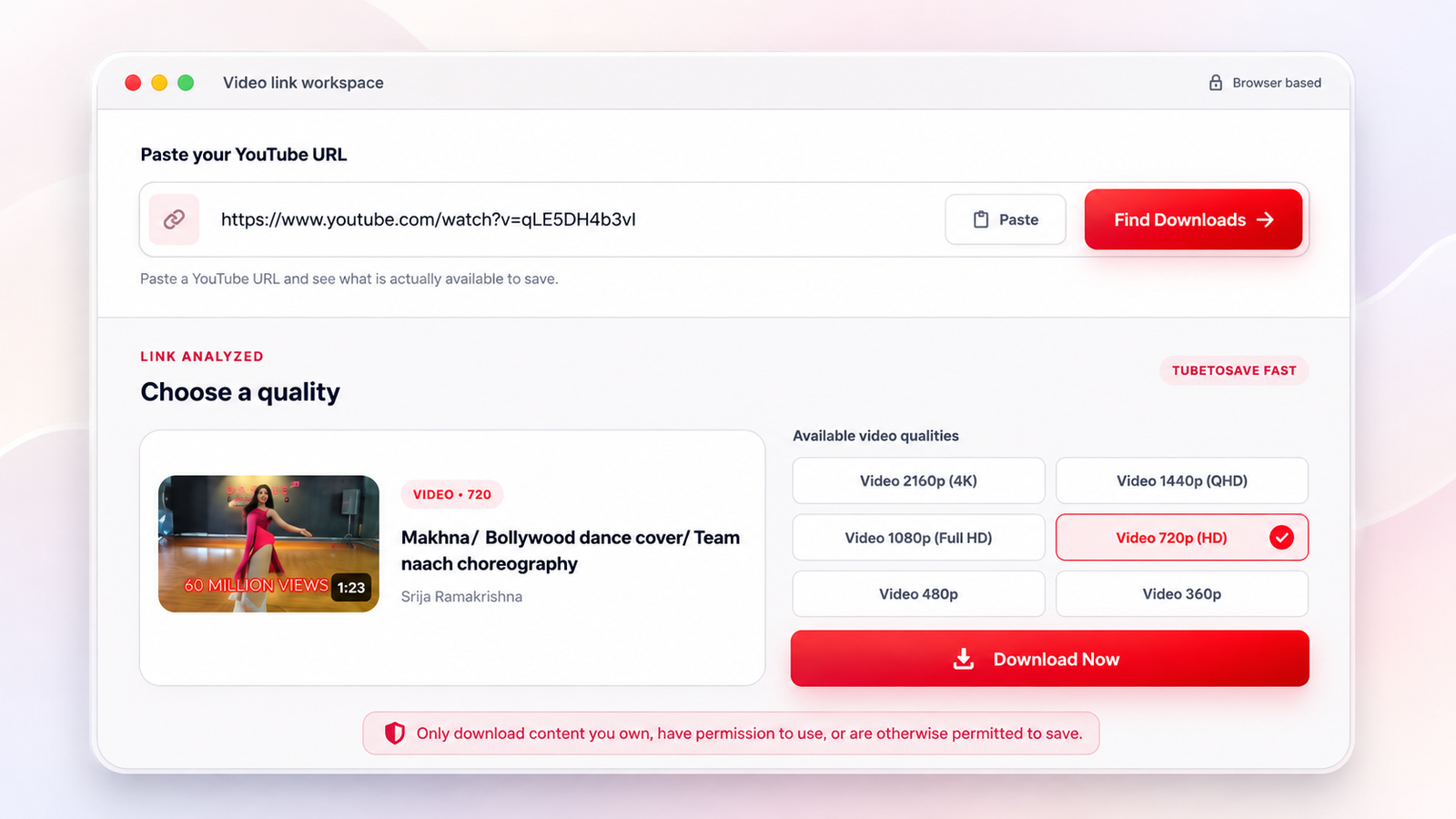
Go to YouTube and find the video you want to save. You can use a normal YouTube watch URL or a supported shortened YouTube link.
On a desktop or laptop, copy the URL from your browser address bar. On a mobile device, open the YouTube video, tap Share, and choose Copy link.
Open the TubeToSave Save YouTube Video tool and paste the copied URL into the input box. Make sure you paste the complete video link.
Select the processing or download button. TubeToSave will check the video and show the supported formats and quality options that are currently available.
Depending on the original upload, you may see options such as 360p, 480p, 720p HD, 1080p Full HD, and higher resolutions when available. Select the version that suits your needs.
Follow the available download option to save the selected video to your device. Your browser may automatically save the file to its Downloads folder or ask you to choose a location.
Not everyone needs the same video resolution. Some users want a small file that is easy to store on a phone, while others prefer better picture quality for a large screen.
Suitable when you want a smaller file size or need to save mobile data. 480p offers a better picture while keeping file sizes relatively manageable for general mobile viewing.
A popular balance between quality and file size. It offers HD video and is suitable for smartphones, tablets, laptops, and many everyday viewing situations.
Ideal when you want sharper Full HD video. It works particularly well for tutorials, presentations, educational videos, screen recordings, and content with detailed visuals.
Many users search for questions such as “how to save YouTube video on my mobile,” “how to save YouTube video on PC,” or “how to save YouTube video on laptop.”
The process is slightly different depending on your device, but the basic idea is the same: copy the video link, paste it into TubeToSave, choose the available format, and save the file.
Open the YouTube app or website, find the video, tap Share, and select Copy link. Open TubeToSave in your mobile browser, paste the link, process it, and select an available quality.
On most Android devices, browser downloads are stored in the Downloads folder. You can usually find it by opening: Files → Downloads.
Open YouTube, tap Share, and tap Copy link. Open Safari or another browser, go to TubeToSave, paste the URL, and follow the download process.
Depending on your iOS version, downloaded files may appear in the Files app. You can usually check: Files → Browse → Downloads.
Open YouTube in your browser, copy the URL from the address bar, open TubeToSave in another tab, paste the link, and save the file.
On most Windows PCs, files are automatically stored in This PC → Downloads. You can press Ctrl + J to open your download history.
The steps for a laptop are almost the same. Whether you use Windows, macOS, or Linux, just copy the link, paste it into TubeToSave, and save.
On a MacBook, browser downloads are usually saved in the Downloads folder in Finder unless you have changed the default location.
MP4 is one of the most popular video formats because it works on a wide range of devices and media players. When an appropriate MP4 format is available, TubeToSave can show it as one of the download choices.
MP4 is commonly preferred because it offers:
A saved MP4 video can usually be played on Windows, macOS, Android, iPhone, tablets, smart TVs, and many other devices.
You do not always need to install a dedicated YouTube downloader application. TubeToSave works through a supported web browser, allowing you to process videos online.
This means you can use the tool on different devices without maintaining separate downloader software. You generally only need:
This is especially useful if you are using a shared computer, work laptop, temporary device, or a system where you prefer not to install programs.
There are several practical reasons users may want to save authorized YouTube content.
If you expect to be somewhere with weak or unavailable internet, an offline copy can make viewing more convenient.
Students may want to keep authorized tutorials, lectures, demonstrations, or educational videos available for repeated reference.
Saving permitted content before a trip can reduce dependence on mobile data or public Wi-Fi.
A locally saved video can be useful during a classroom, meeting, workshop, or presentation where internet access cannot be guaranteed.
You may want to revisit a tutorial, guide, product demonstration, or other video while working on a project.
Content creators may want local copies of videos they created or are authorized to download.
There is no single best quality for every user. The right choice depends on how you plan to watch the video.
You want a smaller file, have limited storage, are mainly watching on a phone, or your connection speed is limited.
You want HD quality, a reasonable file size, and are watching on a phone, tablet, or laptop.
You want Full HD, the video contains text or fine details, you are watching on a larger screen, and visual quality matters more than file size.
A specific quality may not always be available because:
YouTube often delivers high-quality video and audio as separate streams as part of its adaptive streaming system. TubeToSave aims to make the available choices easy to understand so you can select the most suitable option without dealing with the underlying technical details.
Video file sizes vary significantly based on duration, resolution, bitrate, frame rate, codec, and compression. A short 480p video requires relatively little storage, while a long 1080p video can be much larger.
On many Android phones, downloaded videos first appear in the Downloads folder rather than directly inside the Photos or Gallery application. On iPhone/iPad, they may appear in the Files app. Device behavior varies, so check your browser's download location.
Not every video will necessarily be available. Private, deleted, protected, restricted, unavailable, or unsupported content may not be processed.
Only save videos that you own, are authorized to download, are made available for downloading, or can otherwise legally be saved for your intended use. Do not bypass access restrictions or infringe copyright.
Answers to common questions about saving YouTube videos online.
Contact supportCopy the YouTube video URL, paste it into TubeToSave, process the link, choose an available format, and follow the displayed download option.
Copy the video link from the YouTube app, open TubeToSave in your mobile browser, paste the URL, choose a supported format, and save the file. It will usually appear in your Downloads folder or Files app.
Open the YouTube video in your browser, copy its URL, paste it into TubeToSave, choose an available quality, and save the file. Most browsers place downloaded files in the Downloads folder.
Use the same browser-based process: copy the video URL, paste it into TubeToSave, select a supported format, and save the video to your laptop.
When a compatible MP4 version is available, TubeToSave can show it among the available download options.
If the original video provides supported HD formats, you may see options such as 720p or 1080p.
No separate desktop application is required for basic use. TubeToSave works through a supported web browser.
The video may not have been uploaded in 1080p, higher-quality processing may not be complete, or a supported 1080p format may not currently be available.
On Android, they are commonly stored in the Downloads folder. On iPhone or iPad, they may appear in the Downloads section of the Files app, depending on your browser settings.
You can save supported content for offline access when you have the necessary rights or permission to do so.
TubeToSave makes it easy to check the available download formats for a supported YouTube video from your phone, PC, or laptop. There is no need for a complicated setup.
Copy the YouTube link, paste it into the tool, review the available video qualities, and choose the format that best suits your device and storage. Paste your YouTube video link above and choose the version you want to save.