TubeToSave handles the link.
You do not need to locate video files or change the YouTube URL manually. TubeToSave displays the download options available for that video.

Download YouTube videos online by pasting the video link into TubeToSave. Review the download options, select the format and quality you want, then save the video to your device.
Paste a YouTube video URL, then choose from the available download options.
Please wait while we prepare your high-quality MP3 audio…
128 kbps
0% Completed
To download a YouTube video, you only need the video’s URL. Copy the link from YouTube and paste it into the downloader above, then process the video to see the available formats and resolutions.
You do not need to locate video files or change the YouTube URL manually. TubeToSave displays the download options available for that video.
Copy your video link
Enter the copied URL
Select a format and quality
Save the file to your device
Paste a YouTube video URL, process the link, and choose from the formats and resolutions available for that video.
To download a YouTube video, you only need the video’s URL.
Paste the link, review the available formats and resolutions, then choose what you want to download.
YouTube Video DownloaderSave a YouTube video as a standard video file.
Select one of the available MP4 options. MP4 is widely supported on modern phones, tablets, computers, browsers and media players.
YouTube to MP4Only need the audio?
Use the YouTube to MP3 Converter when you need the audio version rather than the full video file.
YouTube to MP3If you only need the audio, use the audio-focused tool.
The YouTube to MP3 Converter is intended for audio files rather than the complete video.
YouTube to MP3 ConverterExplore public Shorts from a YouTube channel.
Browse available public Shorts and review details through the dedicated viewer.
Open Shorts ViewerInspect a supported YouTube link.
Enter a supported video or playlist URL to review the link information available through the dedicated viewer.
Open Link ViewerGet an available thumbnail image instead of the video.
Use the dedicated thumbnail tool when you need an available YouTube thumbnail image rather than a video file.
Open Thumbnail DownloaderCheck public restriction information for a video.
Use the dedicated viewer to inspect the public age-restriction and content-rating signals available for a YouTube video.
Open Age Restricted ViewerUnderstand the access state of a YouTube link.
Review the public information available for private, unlisted, public, or unavailable YouTube links.
Open Private YouTube Viewer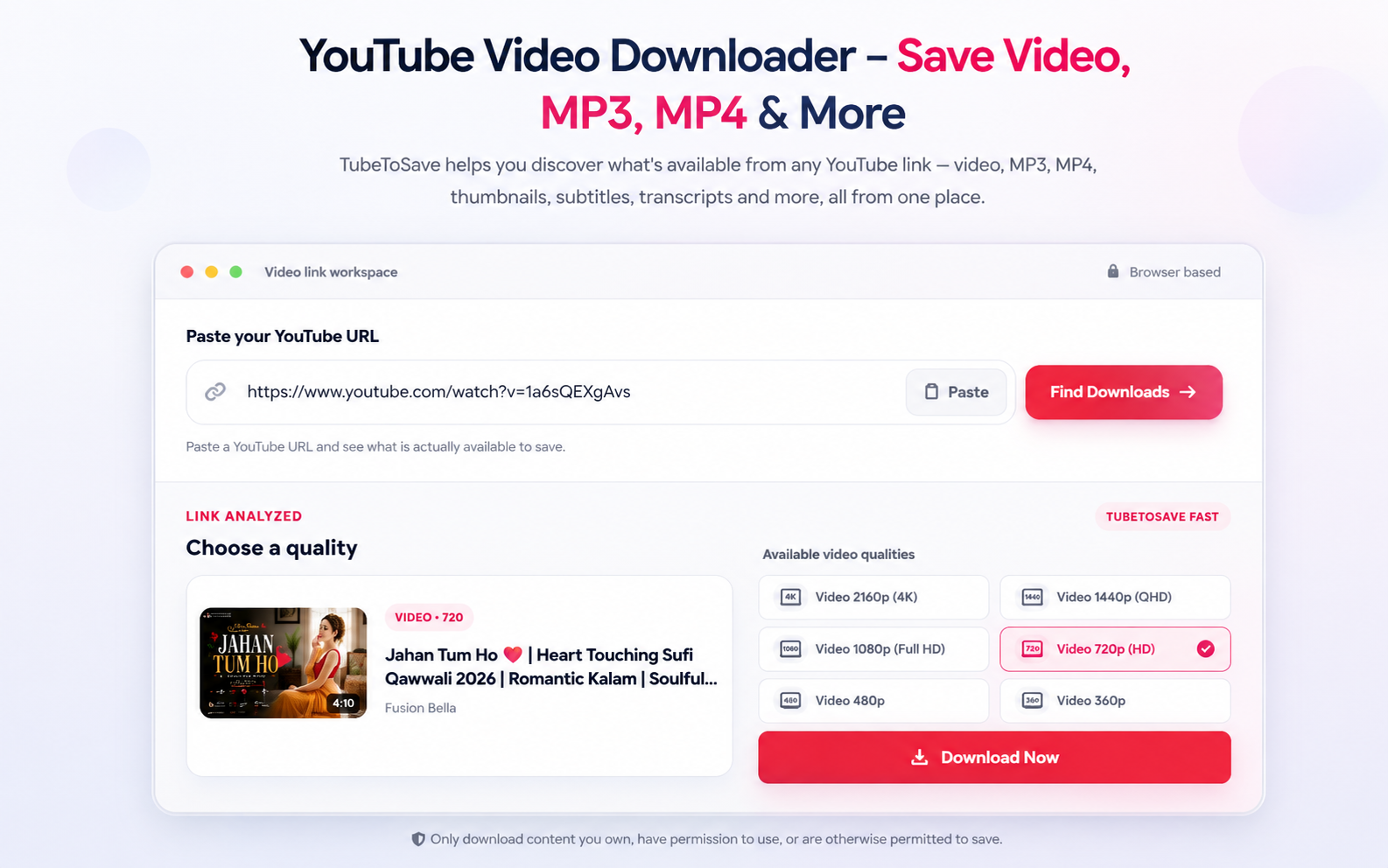
The options you see depend on the original YouTube video. Review what is available after your link has been processed.
You may see options such as:
Choose the option that best suits how you plan to watch or store the video.
If you want to save a YouTube video as a standard video file, select one of the available MP4 options.
MP4 is widely supported on modern phones, tablets, computers, browsers, media players, and other devices.

Formats and resolutions vary from one YouTube video to another
One video may offer several resolutions, while another may offer fewer. The original video and the options available for its URL determine what you can select.
A YouTube video available only in 720p cannot become a real 1080p or 4K video by downloading it.
TubeToSave shows the formats and resolutions available after processing the submitted link, so you can choose based on the source.
Select a quality based on how you plan to use the file. Lower resolutions create smaller files, while higher resolutions provide more visual detail.
Useful if you want a smaller video file.
A standard resolution option.
Better visual quality while keeping a more manageable file size.
Provides greater image detail when the source supports it.
Higher resolutions may appear when they are available for the original video.
You do not need to work out which resolutions are available. Paste the video link, then choose from the options shown for that video.
Use the tool intended for the type of file you need.
If you only need the audio, use the YouTube to MP3 Converter rather than the primary video downloader.
Open YouTube to MP3To keep the visuals, use the YouTube Video Downloader and choose one of the available MP4 formats and resolutions.
Open YouTube to MP4Use the video downloader for video and available resolutions. Use the MP3 converter when you only need audio.
Copy your link → Paste the URL → Choose your quality → Download
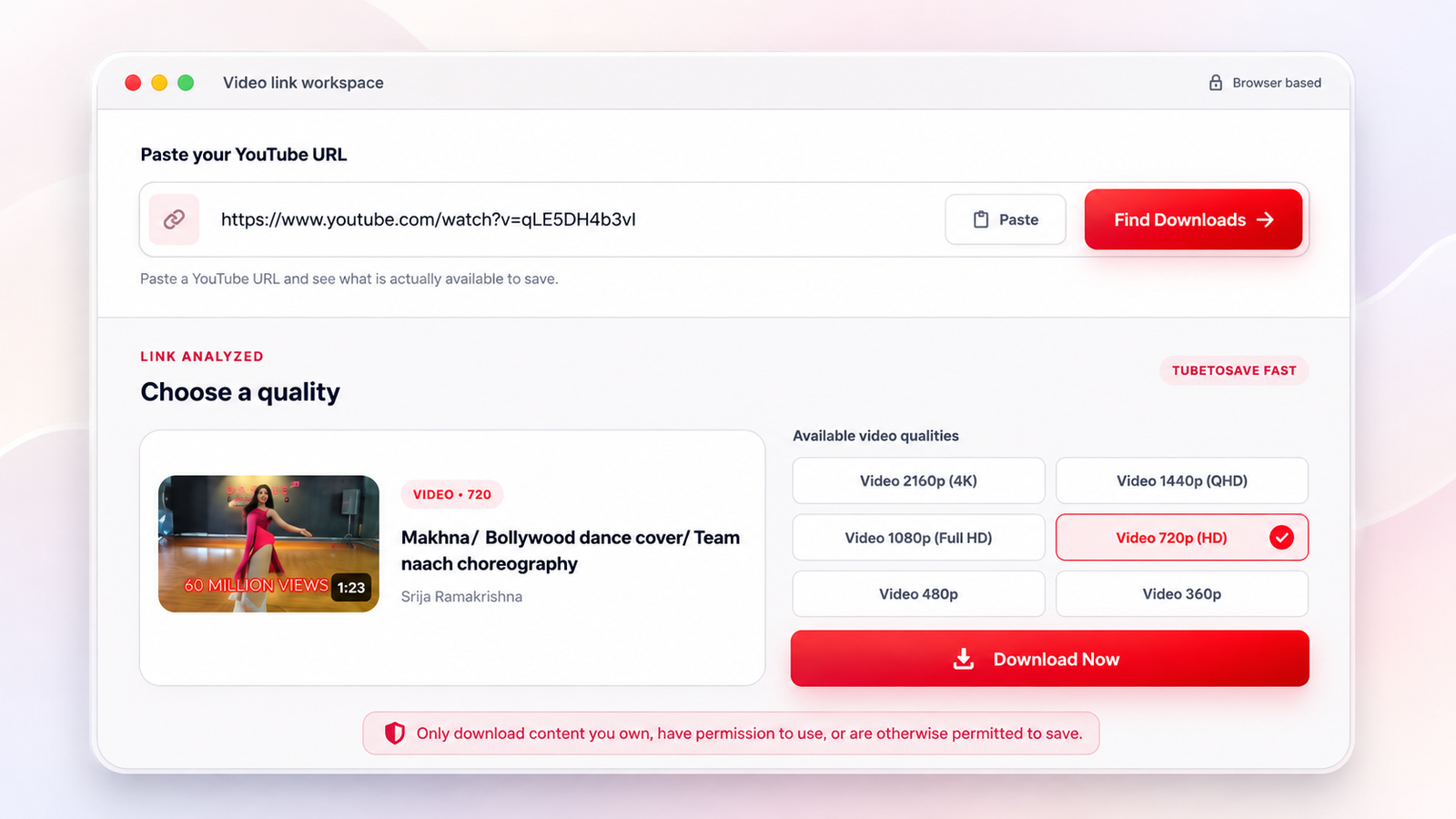
Open the YouTube video you want to download.
On a desktop, copy the URL from the address bar. On a phone or tablet, select Share and copy the video link.
Enter the copied YouTube URL into the downloader above.
Process the link and browse the available formats and resolutions for the video.
Select the option that suits your needs, click Download, and save the file to your device.
You do not need to locate the video files, search through page code, or change the YouTube URL manually.
TubeToSave handles the link and displays the download options available for that video.
No additional software is needed. Open TubeToSave in a compatible browser, paste the YouTube URL, and follow the process for your device.
Whichever device you use, the process stays focused on the same task: paste your URL, check your options, choose your file, and download.
Use TubeToSave on Android, iPhone, iPad, Windows, or Mac without installing additional software.
In your mobile browser, open TubeToSave, enter the URL of the YouTube video, then select one of the available download options.
Open the downloader in a compatible browser, enter the video link, and follow the download options provided by your browser and device.
Copy the YouTube video URL, paste it into TubeToSave, select an available format or resolution, and save the file to your computer.
Use TubeToSave in your browser to enter the YouTube link, then select one of the available video download options.
Open TubeToSave in your browser, paste the YouTube URL, then choose from the available download options.
TubeToSave provides a direct route from a YouTube video link to the available downloadable file options.

If you want to save a YouTube video for later, begin with the video’s URL.
You do not need to search through page code, locate individual video streams, or change the YouTube URL manually.
Once the link has been processed, you can see the formats and resolutions available for that video.
Choose a video format and quality based on how you plan to watch or store the file.
Access the completed file in your device’s usual download location or browser download history.
Use TubeToSave online without installing a separate desktop downloader.
Paste the video link and proceed without creating an account.
When the submitted video is available in MP4 format, select it from the options provided.
TubeToSave shows the quality options available for the URL you submit.
A lower resolution creates a smaller file, while a higher resolution provides more visual detail.
Paste your URL, check your options, choose your file, and download.
Clear answers about video formats, available quality, browser use, mobile downloads, saved files, and permissions.
Contact supportA YouTube video downloader lets you enter a YouTube video URL and choose options to save the video as a file.
Take the URL of the YouTube video, paste it into TubeToSave, process the link, select an available format or resolution, and download the chosen file to your device.
Yes. Enter the URL of the video you want to process, review the download options available for that video, and select the format and resolution you prefer.
When the YouTube video you submit is available in MP4 format, you can select it from the download options provided. Specific formats and resolutions vary depending on the source video.
No. You can use TubeToSave in your web browser without installing a separate desktop downloader.
The available quality depends on the original YouTube video. Options may include 360p, 480p, 720p, 1080p, and higher resolutions when the source provides them.
Choose based on how you plan to use the file. A lower resolution creates a smaller file, while a higher resolution provides more visual detail.
Yes. Use TubeToSave in a compatible mobile browser, paste the video URL, process the link, choose a download option, and save the file using your browser or operating system.
It depends on your browser and device settings. On many Windows, Mac, and Android devices, check the Downloads folder or browser download history. On iPhone or iPad, check the Files app or browser download manager.
No. A watermark, creator logo, channel branding, text, subtitles, or graphics already present in the original video will not be automatically removed.
If you only need the audio, use the YouTube to MP3 Converter rather than the primary video downloader.
The original video’s resolution, the formats available for that source, and the type of URL provided determine the options shown after processing.
No. A video available only in 720p cannot become a real 1080p or 4K video by downloading it. If the source does not provide a resolution, it will not appear as a download option.
No. Copy the video link and paste it into TubeToSave. The service handles the link and displays the available download options for that video.
You only need the video’s URL. Copy it from the browser address bar or use Share and Copy link on a phone or tablet.
Paste your URL, check the available options, choose your file, and download it to your device.
The available formats and resolutions depend on the original YouTube video and the download options available for that URL.
Only download content when you have the necessary rights or permission. You are responsible for following applicable copyright laws, platform terms, and the rights of content owners.
Browse the available formats and resolutions, choose the one you prefer, and save the video to your device. Only download content when you have the necessary rights or permission to do so.